# HTTP live capture in MintFlow 2.0.0
This guide walks through capturing a short HTTP/HTTPS session, inspecting it, and exporting it for analysis. You do not need a remote VPN or proxy server: a **Direct** output sends processed traffic through your normal Internet connection.
The screenshots below show MintFlow **2.0.0 on an iPhone 17e simulator running iOS 26.4**, captured in September 2026. They demonstrate the actual configuration UI. The simulator cannot run MintFlow's real packet tunnel, so the capture screen is intentionally empty and certificate setup is incomplete. Perform VPN connection, certificate installation/trust, and live traffic verification on your iPhone or iPad.
## 1. Prepare a Direct profile
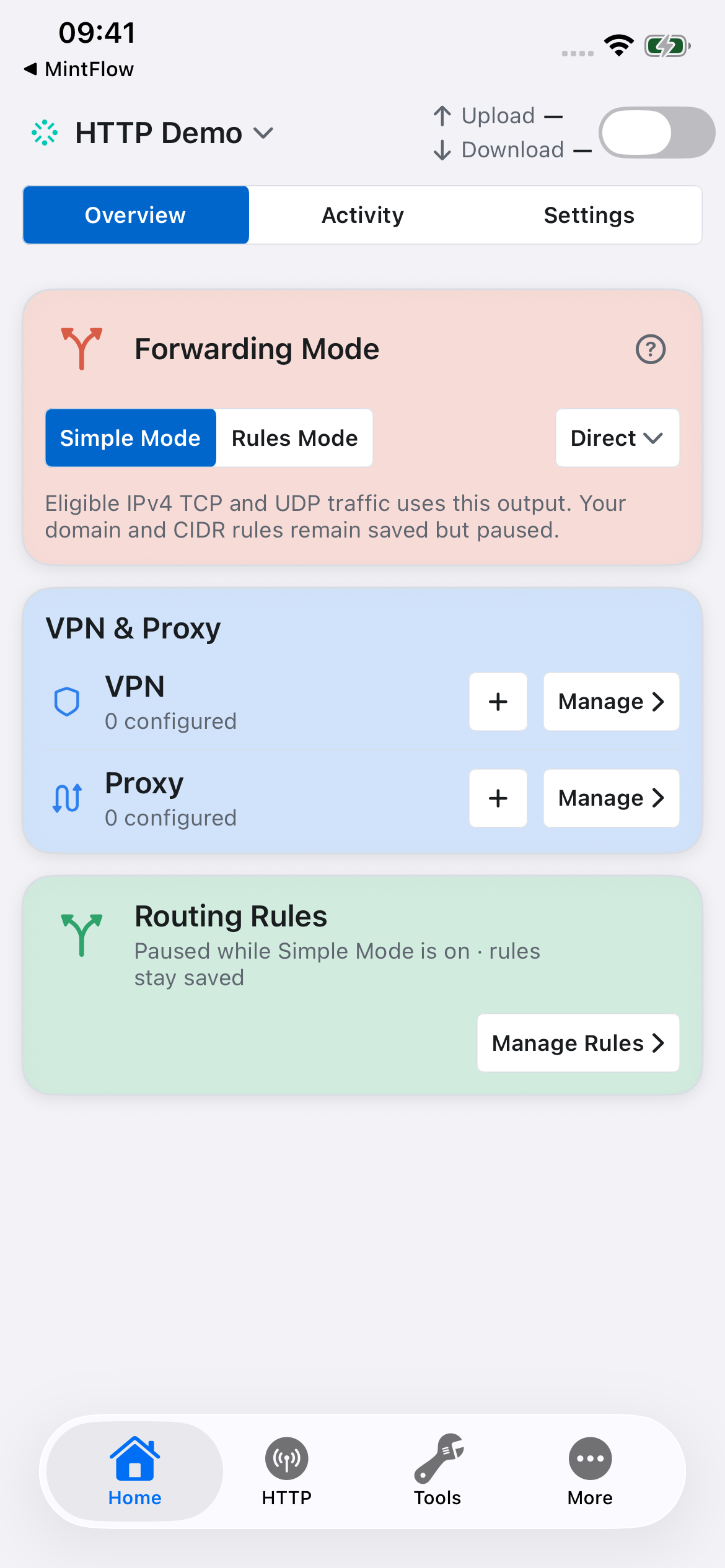
Create a dedicated profile for your investigation. On **Home**, choose **Simple Mode → Direct**. Your saved Rules Mode configuration remains available when you switch back.
 For a profile-text alternative using explicit routing, use:
```ini
[dns]
app-routing-enabled=true
direct-dns=1.1.1.1,8.8.8.8
[routing]
DNS-FALLBACK,DIRECT
DEFAULT,DIRECT
[http-engine]
enabled=true
domain-list=example.com
port-list=80,443
mitm-bypass-apple-services=true
```
Use **Rules Mode** with that example. App Routing lets MintFlow DNS associate domain lookups with traffic. The HTTP capture list is separate from routing domain sets. Save the profile; after changing profile configuration, restart VPN to compile and apply it.
## 2. Open the HTTP workspace
Select the **HTTP** tab. Its cards separate engine setup, capture, rewrite management, and HTTP Labs.
For a profile-text alternative using explicit routing, use:
```ini
[dns]
app-routing-enabled=true
direct-dns=1.1.1.1,8.8.8.8
[routing]
DNS-FALLBACK,DIRECT
DEFAULT,DIRECT
[http-engine]
enabled=true
domain-list=example.com
port-list=80,443
mitm-bypass-apple-services=true
```
Use **Rules Mode** with that example. App Routing lets MintFlow DNS associate domain lookups with traffic. The HTTP capture list is separate from routing domain sets. Save the profile; after changing profile configuration, restart VPN to compile and apply it.
## 2. Open the HTTP workspace
Select the **HTTP** tab. Its cards separate engine setup, capture, rewrite management, and HTTP Labs.
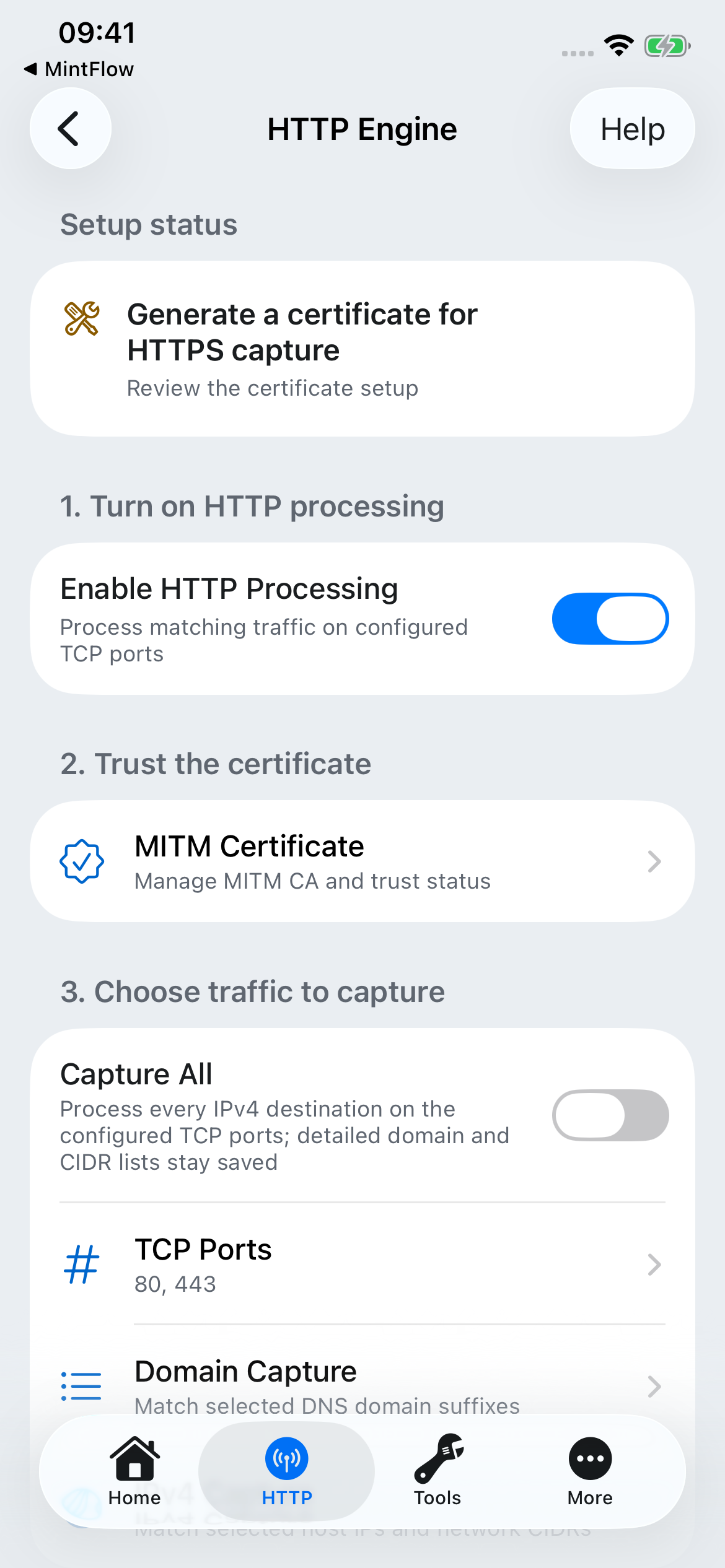
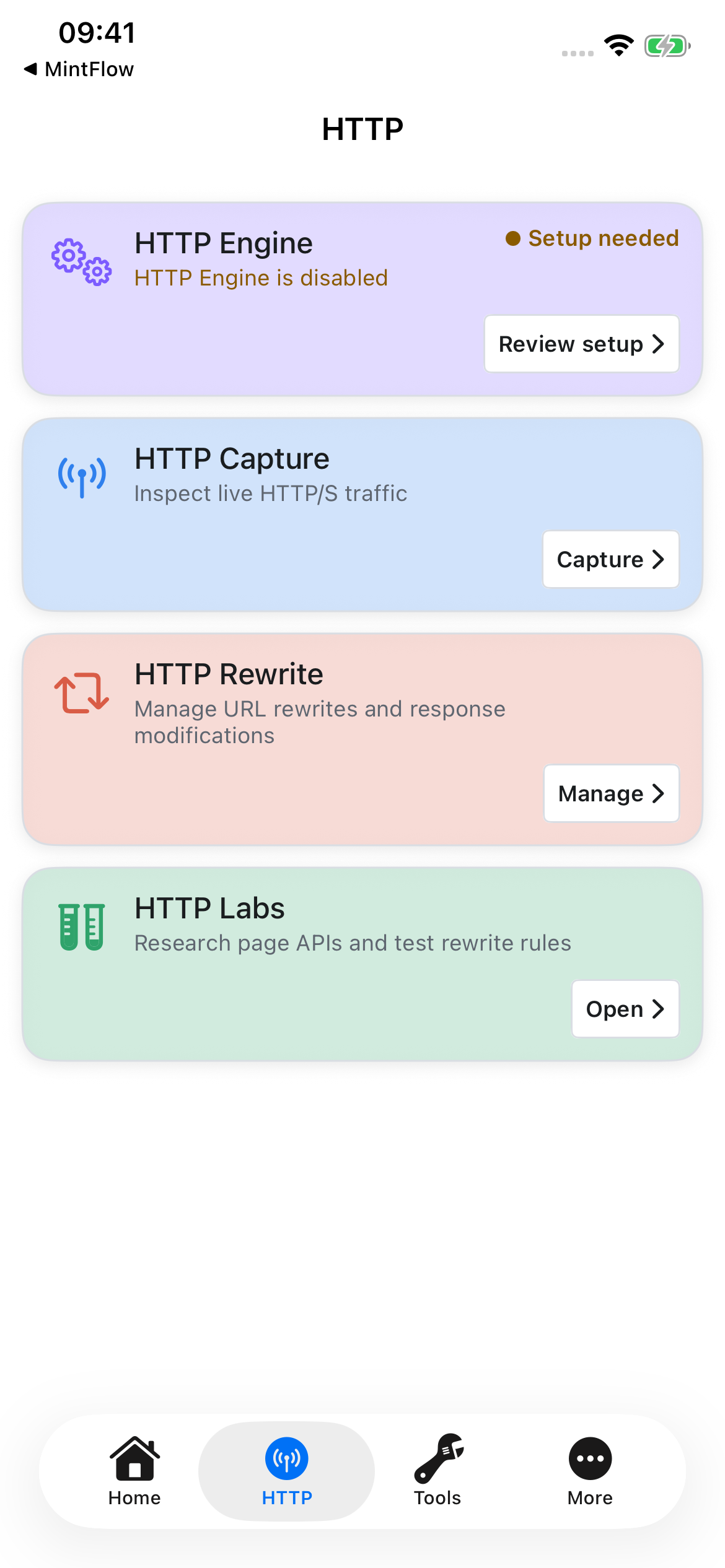 Open **HTTP Engine** and turn on **Enable HTTP Processing**. The setup status identifies the next missing step.
 ## 3. Generate, install, and trust the HTTPS certificate
Plain HTTP does not require decryption. For HTTPS inspection, MintFlow needs its local CA installed and trusted by the device.
1. Open **HTTP → HTTP Engine → MITM Certificate**.
2. Choose **Generate CA Certificate** if no CA exists. The screen displays its name, SHA-256 fingerprint, and expiry.
3. Choose **Install CA Certificate**. The app serves the certificate profile to the browser. Allow the profile download.
4. On the actual device, open **Settings → General → VPN & Device Management** and select the downloaded MintFlow profile. Depending on iOS version, **Profile Downloaded** may also appear near the top of Settings. Inspect the certificate and install it.
5. Open **Settings → General → About → Certificate Trust Settings**. Enable full trust for the MintFlow CA you just installed, then return to MintFlow and check the status.
## 3. Generate, install, and trust the HTTPS certificate
Plain HTTP does not require decryption. For HTTPS inspection, MintFlow needs its local CA installed and trusted by the device.
1. Open **HTTP → HTTP Engine → MITM Certificate**.
2. Choose **Generate CA Certificate** if no CA exists. The screen displays its name, SHA-256 fingerprint, and expiry.
3. Choose **Install CA Certificate**. The app serves the certificate profile to the browser. Allow the profile download.
4. On the actual device, open **Settings → General → VPN & Device Management** and select the downloaded MintFlow profile. Depending on iOS version, **Profile Downloaded** may also appear near the top of Settings. Inspect the certificate and install it.
5. Open **Settings → General → About → Certificate Trust Settings**. Enable full trust for the MintFlow CA you just installed, then return to MintFlow and check the status.
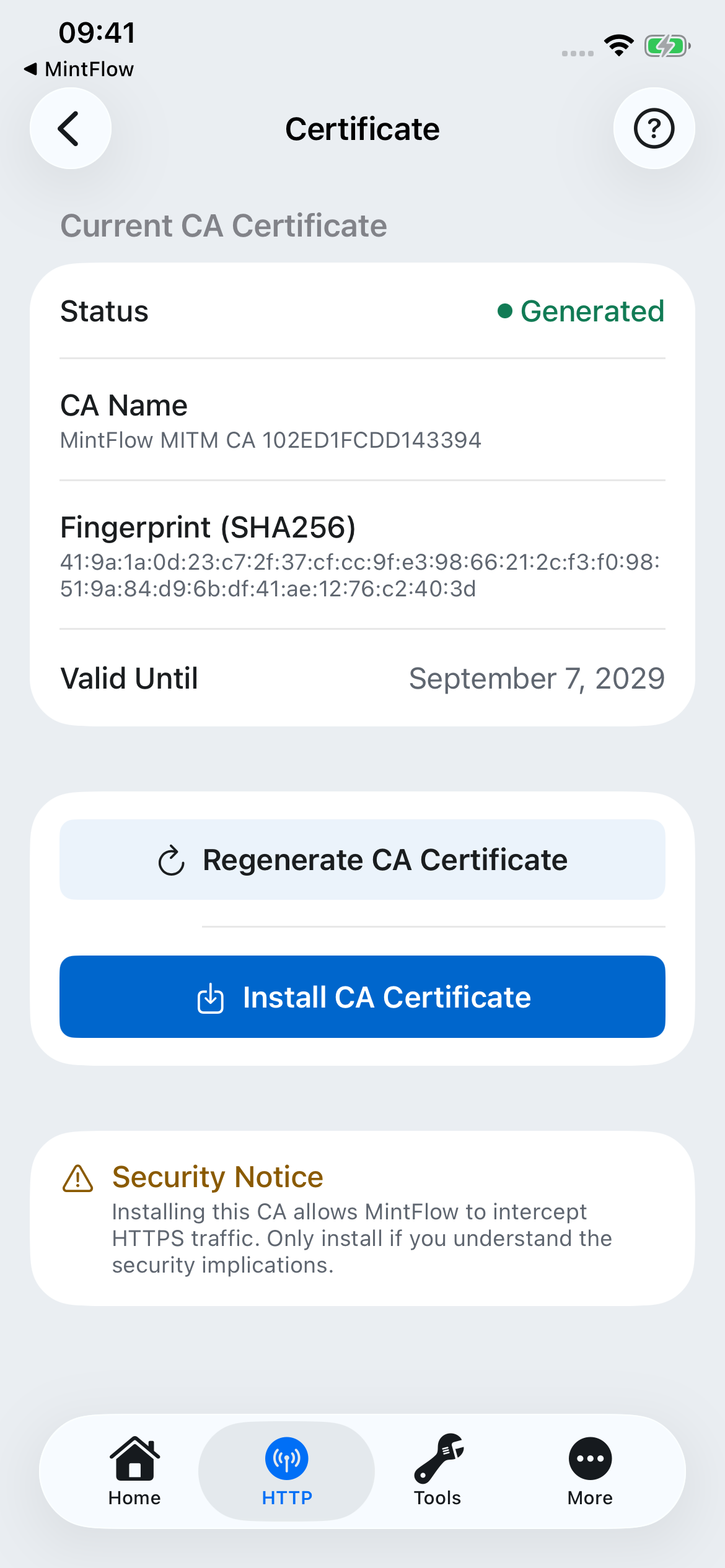 **Generated**, **Installed**, and **Trusted** are different stages. Installing the profile alone is not enough for HTTPS inspection. If no download prompt appears, return to MintFlow and choose Install again. If you regenerate the CA, the old trusted certificate no longer corresponds to the new CA; install and trust the new one.
Trust only a CA you intentionally created for this investigation. Do not share its private key. Apple's [manual certificate trust instructions](https://support.apple.com/en-us/102390) describe the device-side trust step.
## 4. Choose the traffic to process
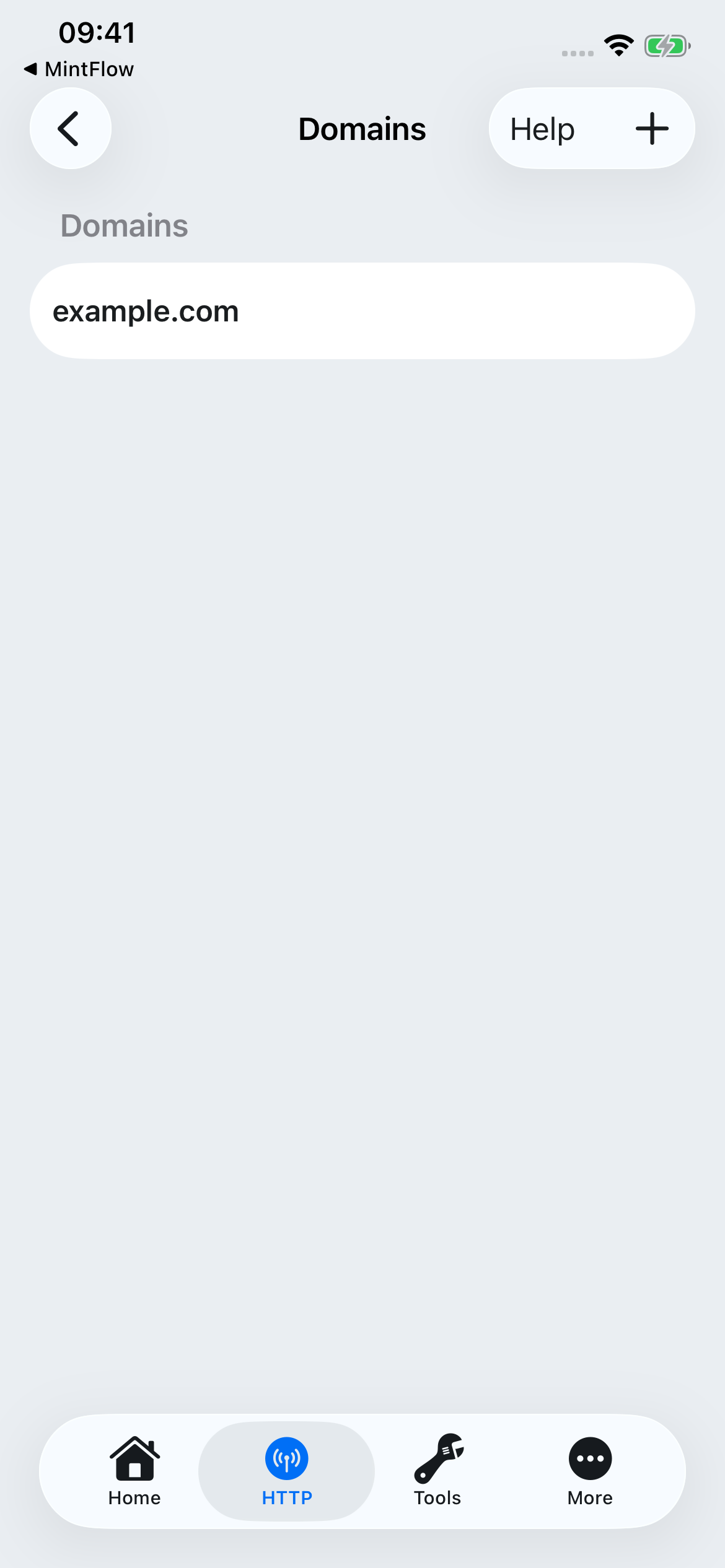
For a focused first capture, open **Domain Capture**, tap **+**, and add `example.com`. Enter a domain suffix, without `https://` or a URL path. Add the actual API domains of the app you later want to inspect.
**Generated**, **Installed**, and **Trusted** are different stages. Installing the profile alone is not enough for HTTPS inspection. If no download prompt appears, return to MintFlow and choose Install again. If you regenerate the CA, the old trusted certificate no longer corresponds to the new CA; install and trust the new one.
Trust only a CA you intentionally created for this investigation. Do not share its private key. Apple's [manual certificate trust instructions](https://support.apple.com/en-us/102390) describe the device-side trust step.
## 4. Choose the traffic to process
For a focused first capture, open **Domain Capture**, tap **+**, and add `example.com`. Enter a domain suffix, without `https://` or a URL path. Add the actual API domains of the app you later want to inspect.
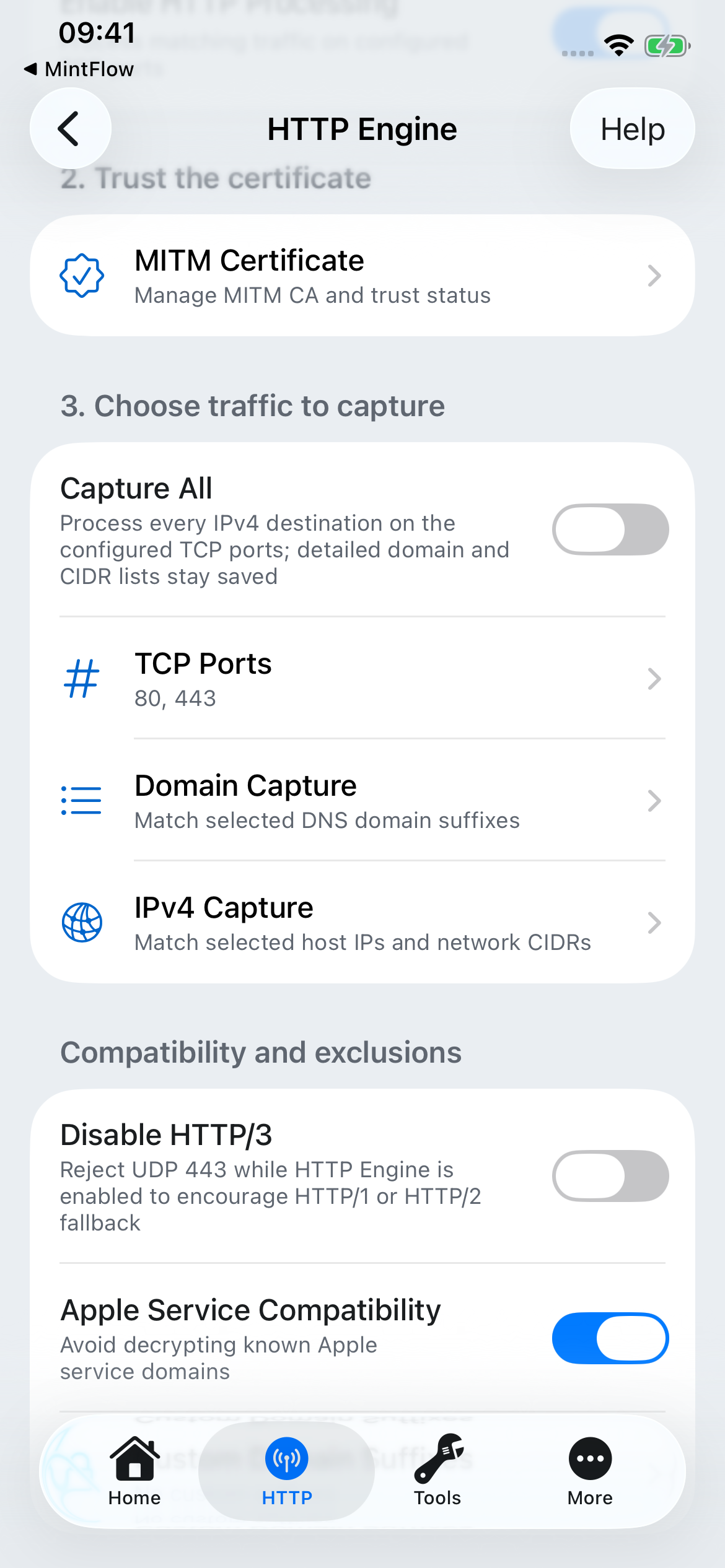
 Keep **TCP Ports** at `80,443` for normal web traffic. Add another port when your test service uses it. Use **IPv4 Capture** for known destination CIDRs. **Capture All** processes all IPv4 destinations on those ports and keeps your domain/CIDR lists saved; it can collect substantial unrelated traffic, so use it deliberately.
Keep **Apple Service Compatibility** enabled for normal use. Add custom domain suffixes that should never be decrypted. **Disable HTTP/3** rejects UDP 443 while the engine is enabled to encourage compatible clients to retry using HTTP/1 or HTTP/2 over TCP; it does not decrypt QUIC and some clients will not fall back.
Keep **TCP Ports** at `80,443` for normal web traffic. Add another port when your test service uses it. Use **IPv4 Capture** for known destination CIDRs. **Capture All** processes all IPv4 destinations on those ports and keeps your domain/CIDR lists saved; it can collect substantial unrelated traffic, so use it deliberately.
Keep **Apple Service Compatibility** enabled for normal use. Add custom domain suffixes that should never be decrypted. **Disable HTTP/3** rejects UDP 443 while the engine is enabled to encourage compatible clients to retry using HTTP/1 or HTTP/2 over TCP; it does not decrypt QUIC and some clients will not fall back.
 ## 5. Start VPN, then start a short capture
On the actual device, return to Home and start VPN. Approve iOS's VPN configuration prompt if this is your first connection. Resolve any profile compilation errors or entitlement restrictions before proceeding.
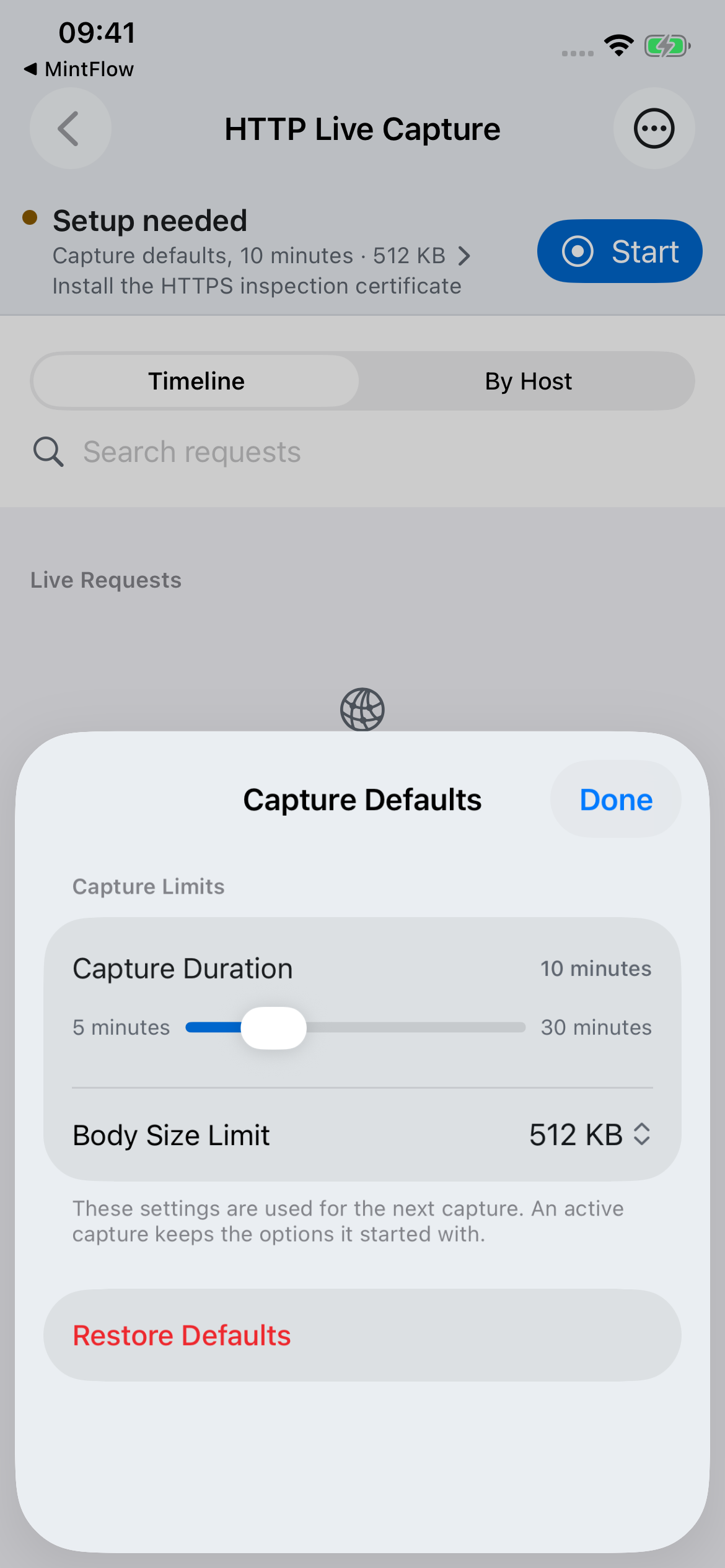
Open **HTTP → HTTP Capture**. Tap the capture status/defaults control to choose the duration and body size limit. These defaults apply to the **next** capture; changing them does not resize an already active session.
## 5. Start VPN, then start a short capture
On the actual device, return to Home and start VPN. Approve iOS's VPN configuration prompt if this is your first connection. Resolve any profile compilation errors or entitlement restrictions before proceeding.
Open **HTTP → HTTP Capture**. Tap the capture status/defaults control to choose the duration and body size limit. These defaults apply to the **next** capture; changing them does not resize an already active session.
 Tap **Start**, open Safari and visit `https://example.com`, then return to MintFlow. For an app investigation, reproduce one specific operation instead. Tap **Stop** when done.
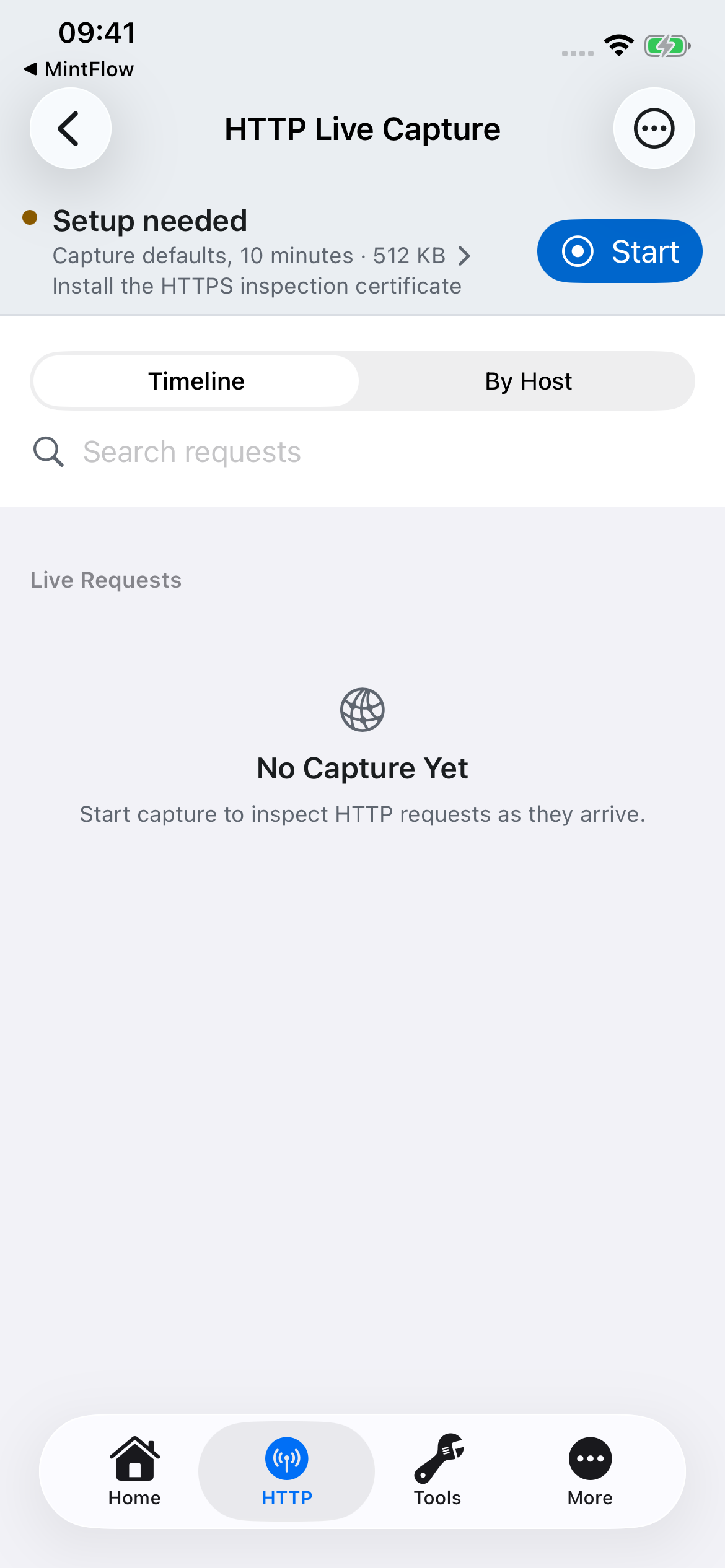 The simulator screenshot shows the controls, not a successful device capture. On a real device with setup complete, matching HTTP requests appear as traffic arrives. Start recording before reproducing the operation; enablement of the HTTP engine alone does not record a session.
## 6. Inspect and export
Search the request list, open a transaction, and inspect its method, URL, request/response headers, status, timing, and available bodies. Body limits and passthrough traffic can mean that a full body is unavailable. Use history to reopen a stopped session.
For further analysis, stop recording and export the relevant session(s). Choose **Agent Analysis Bundle** for query/header redaction and an included rewrite-authoring contract, or **Original Database** when you need the original snapshot. Included bodies can contain sensitive information.
Continue with the [HTTP analysis bundle and MFHRB guide](http-analysis-mfhrb.md) to ask an agent for a portable rewrite, import it disabled, review it, and test it before activation.
## Troubleshooting
| Symptom | Check |
|---|---|
| No requests | VPN connected, capture started, correct profile and output, HTTP Processing enabled, matching domains/IPs and TCP ports, and new traffic after capture started. |
| HTTPS fails | The current CA is generated, installed, and fully trusted. Regenerating it requires installing/trusting the replacement. |
| A particular app remains opaque | It may pin certificates, use QUIC, or match a never-decrypt rule. Trusting a local CA does not bypass certificate pinning. |
| Traffic bypasses the capture scope | Check App Routing/MintFlow DNS and the actual API domain, not only the app's marketing website. DNS Log can help identify it. |
| Body missing or incomplete | Check the capture's body size limit, export body option, and whether the record is decrypted HTTP or passthrough metadata. |
| New rule or setting has no effect | Save the profile, inspect compilation diagnostics, and restart VPN. Imported MFHRB rules remain disabled until you enable them. |
[HTTP Engine overview](../http-engine.md) · [Profile reference](../profile.md)
The simulator screenshot shows the controls, not a successful device capture. On a real device with setup complete, matching HTTP requests appear as traffic arrives. Start recording before reproducing the operation; enablement of the HTTP engine alone does not record a session.
## 6. Inspect and export
Search the request list, open a transaction, and inspect its method, URL, request/response headers, status, timing, and available bodies. Body limits and passthrough traffic can mean that a full body is unavailable. Use history to reopen a stopped session.
For further analysis, stop recording and export the relevant session(s). Choose **Agent Analysis Bundle** for query/header redaction and an included rewrite-authoring contract, or **Original Database** when you need the original snapshot. Included bodies can contain sensitive information.
Continue with the [HTTP analysis bundle and MFHRB guide](http-analysis-mfhrb.md) to ask an agent for a portable rewrite, import it disabled, review it, and test it before activation.
## Troubleshooting
| Symptom | Check |
|---|---|
| No requests | VPN connected, capture started, correct profile and output, HTTP Processing enabled, matching domains/IPs and TCP ports, and new traffic after capture started. |
| HTTPS fails | The current CA is generated, installed, and fully trusted. Regenerating it requires installing/trusting the replacement. |
| A particular app remains opaque | It may pin certificates, use QUIC, or match a never-decrypt rule. Trusting a local CA does not bypass certificate pinning. |
| Traffic bypasses the capture scope | Check App Routing/MintFlow DNS and the actual API domain, not only the app's marketing website. DNS Log can help identify it. |
| Body missing or incomplete | Check the capture's body size limit, export body option, and whether the record is decrypted HTTP or passthrough metadata. |
| New rule or setting has no effect | Save the profile, inspect compilation diagnostics, and restart VPN. Imported MFHRB rules remain disabled until you enable them. |
[HTTP Engine overview](../http-engine.md) · [Profile reference](../profile.md)